
Wondershare
Shrink a PDF and merge many files into one
Get a file down to attachment size and tidy the page order.
- 20% off PDFelement
- OCR for scanned PDFs in 26 languages
- Sign and send without printing
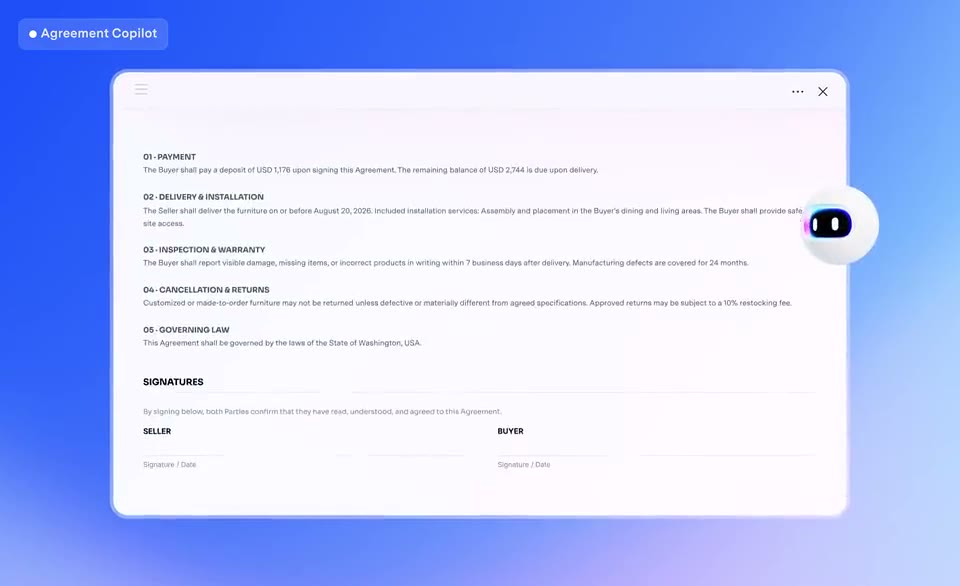
A scanned contract that runs to dozens of pages tends to hit the limit of an email attachment or an upload form. The first fix is to shrink the file itself without hurting legibility.
Compression starts from the home screen or the tools menu, where you pick a level. You can preview the result and step back if the quality disappoints, and you can set image DPI and content options yourself for finer control.
With many files, add individual PDFs or whole folders and compress them in one batch. When the job finishes you can see how much smaller the file became.
Merging starts at Combine PDF on the home window: add your files and press Apply. There is an option to build a new catalogue from bookmarks, and you can also drag files into the thumbnail pane or use Insert under the Page tab to bring in another PDF.
Afterwards the page tools take over: split, reorder, rotate, extract and replace. Start with the current 20% off PDFelement and you do not need separate tools for squeezing and joining.
Deals you can use now
| Deal | Code | Conditions |
|---|---|---|
| 20%20% off PDFelement | — | — |
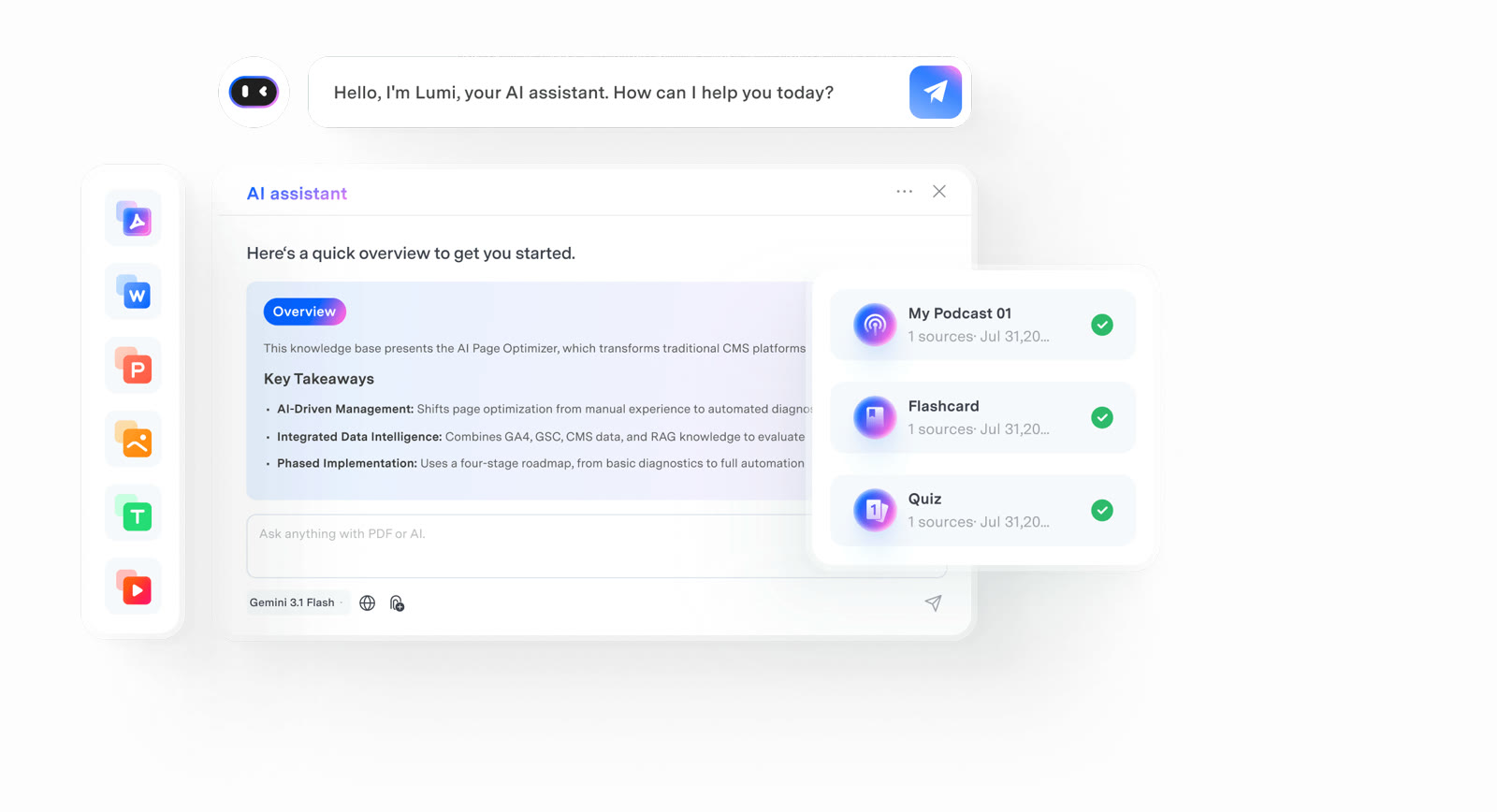 See PDFelement in detailEdit a PDF as easily as a Word fileNo original file? Edit the PDF itself · Let the AI write the email · Sign without printing · Scanned PDFs, turned into text
FAQ
Can I preview a compressed PDF?
Yes. You can preview the file at the compression level you picked and revert if you do not like it.
Can I shrink several PDFs at once?
Add files or folders and compress them as a batch with the level you choose.
Can merging also create a table of contents?
Tick the option in the combine window to generate a new catalogue from bookmarks.
You might also like
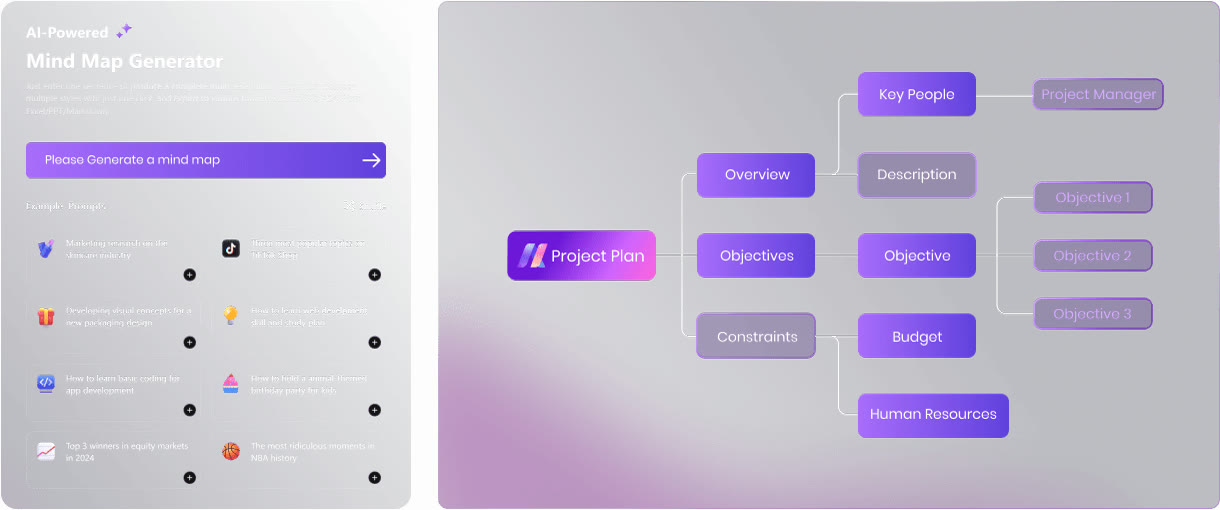 Edraw.AI7-day unlimited free trialDescribe it, and the diagram draws itself
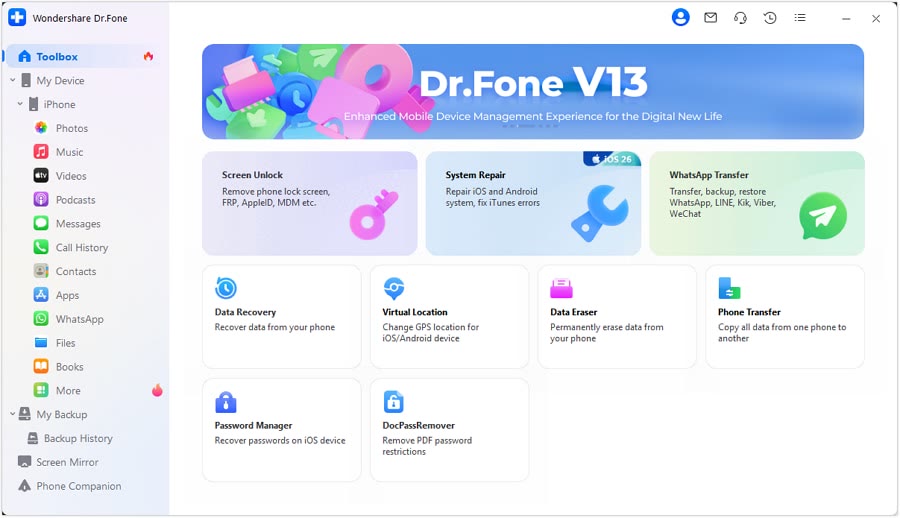 Dr.FoneExtra checkout code SAFDRFON for Dr.FonePhone recovery, repair and transfer toolkit
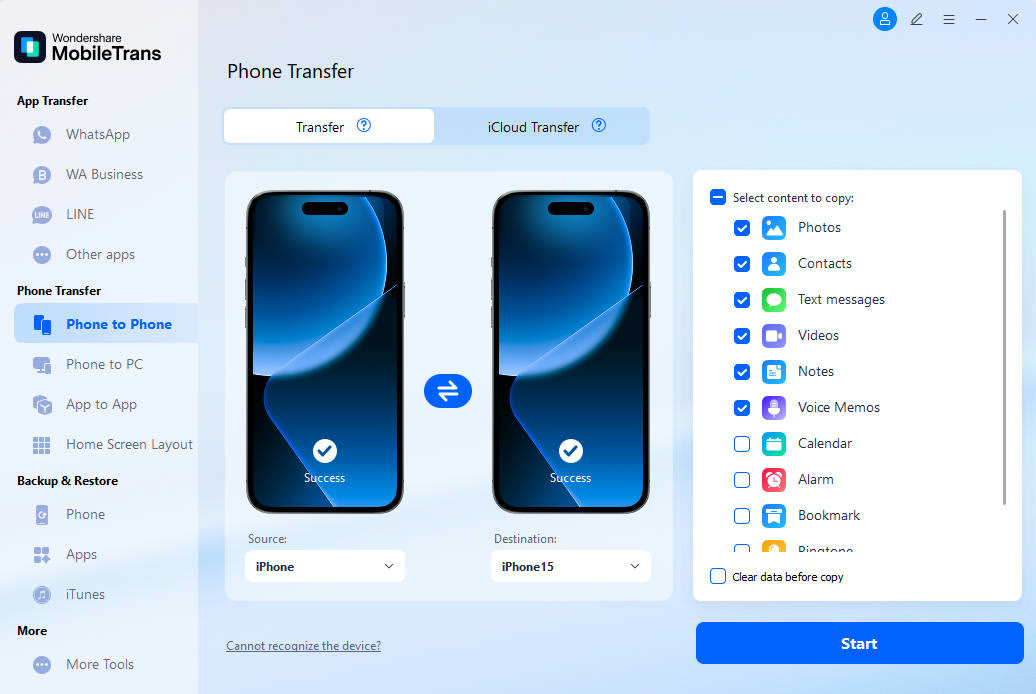 MobileTransAn extra MobileTrans checkout code: SENMOBTRPhone-to-phone transfer and backup
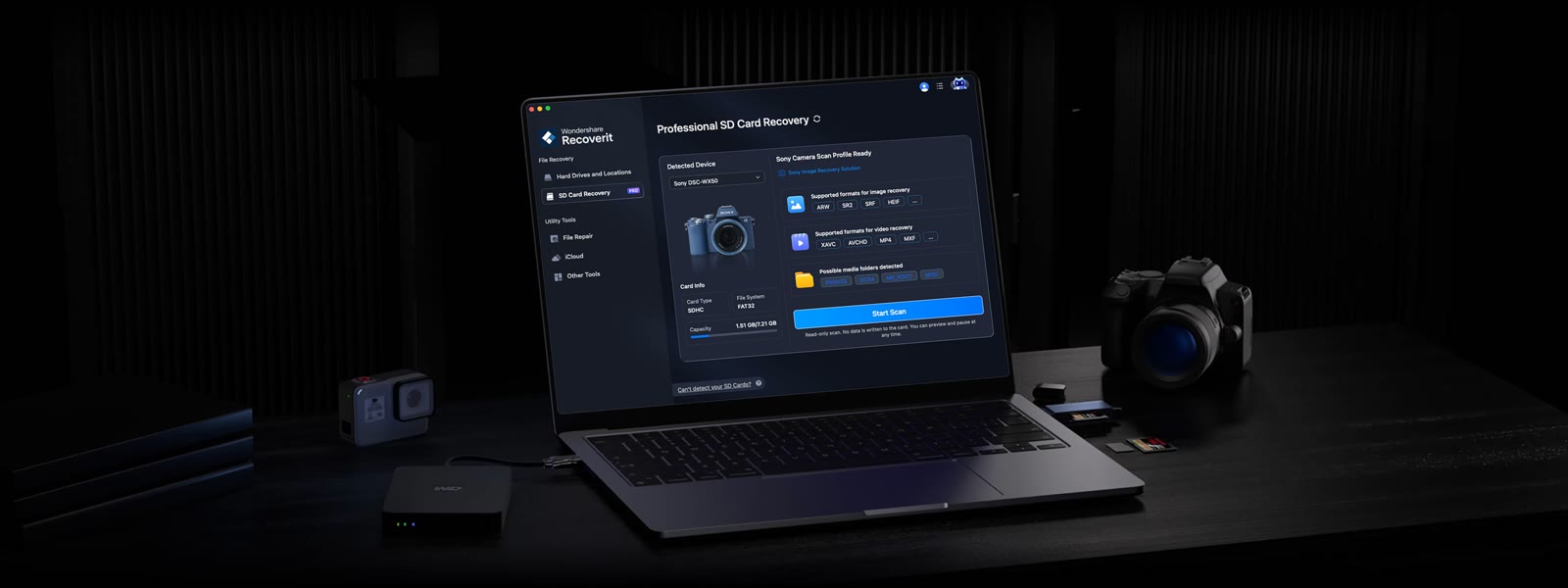 RecoveritExtra checkout code SAFRECOVGet deleted and formatted files back