
Wondershare
Transfer LINE chats to a new phone
LINE is a menu entry of its own in MobileTrans.
- Extra checkout code SENMOBTR
- 18+ data types, 6000+ devices
- 7-day money-back guarantee
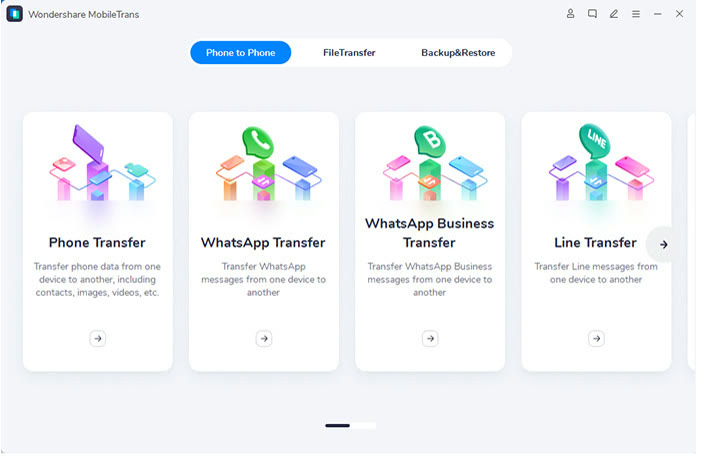
LINE has its own entry in the App Transfer section, right under WhatsApp Business. The official site also lists LINE among the apps whose data can move to a new phone.
The documented method connects both phones to a computer by USB. You open the WhatsApp Transfer module, choose Transfer Line Messages, set Android as source and iPhone as destination, and press Start.
The guide says direct messages, group messages, system notifications, photos and videos are carried over. Whether an iPhone's existing LINE history merges is not stated, so test with a spare chat first.
The launcher screen shows Phone Transfer, WhatsApp Transfer, WhatsApp Business Transfer and Line Transfer as separate tiles, so nothing is buried in a submenu.
A purchase is needed to complete messenger transfers, and you can type SENMOBTR in as an extra checkout code.
Deals you can use now
| Deal | Code | Conditions |
|---|---|---|
| CodeAn extra MobileTrans checkout code: SENMOBTR | SENMOBTR | The official site does not state an amount for this code. Check the total at checkout. |
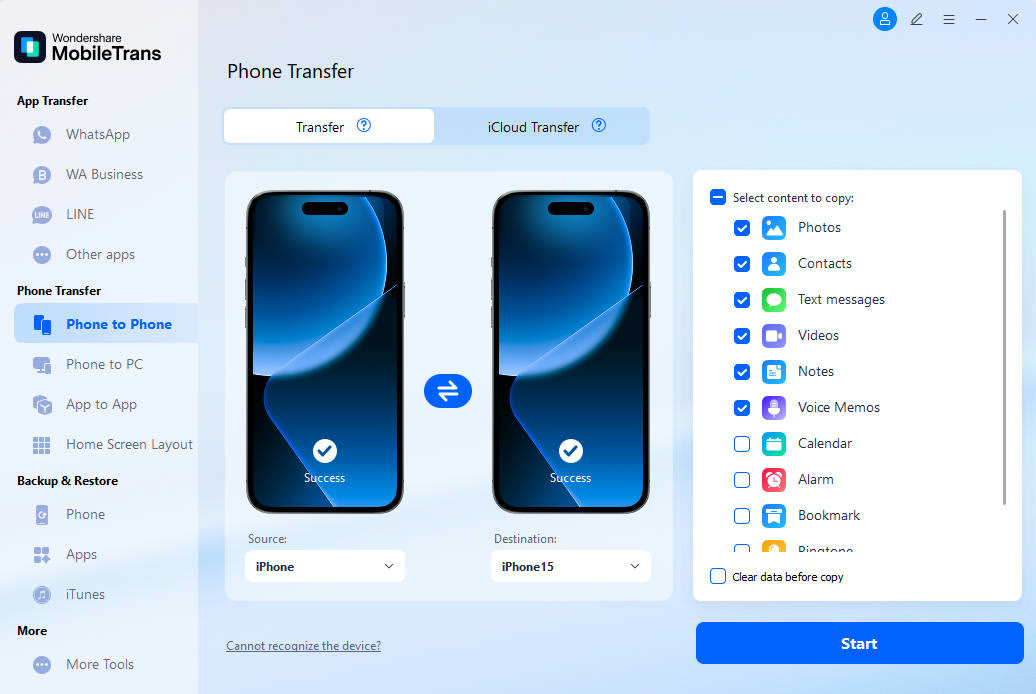 See MobileTrans in detailPhone-to-phone transfer and backupPick what moves, then press Start · WhatsApp chats arrive in two stages · Move photos between phone and computer · Back up item by item
FAQ
Which direction does the guide describe?
Android as the source and iPhone as the destination, with both phones plugged in over USB.
Does it merge with LINE history already on the iPhone?
The guide does not say. Try a small test conversation to see before moving everything.
Are other messengers supported too?
The official homepage names WhatsApp Business, Kik and Viber alongside LINE.
You might also like
 PDFelement20% off PDFelementEdit a PDF as easily as a Word file
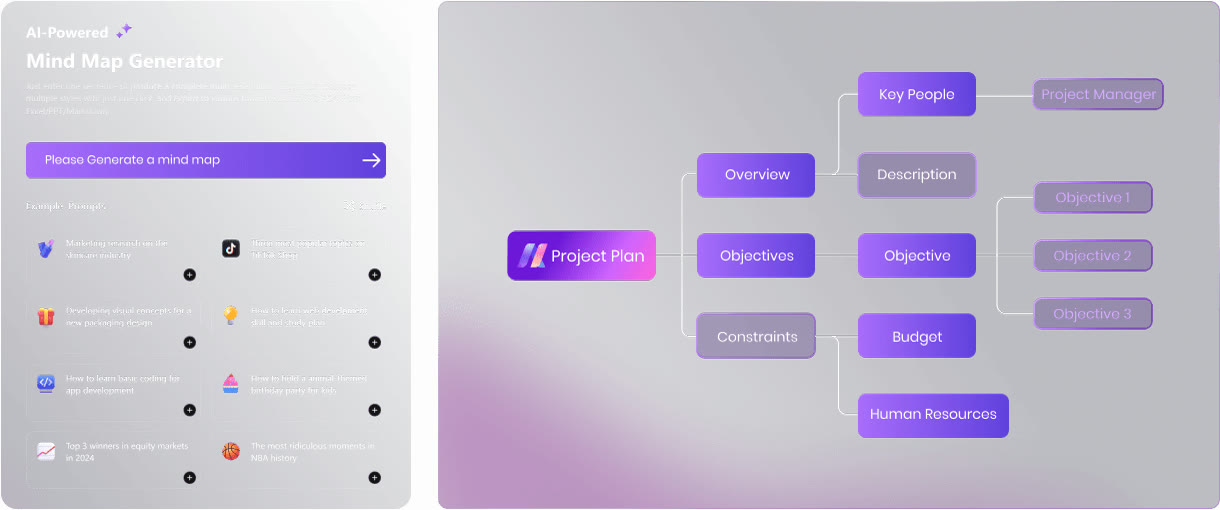 Edraw.AI7-day unlimited free trialDescribe it, and the diagram draws itself
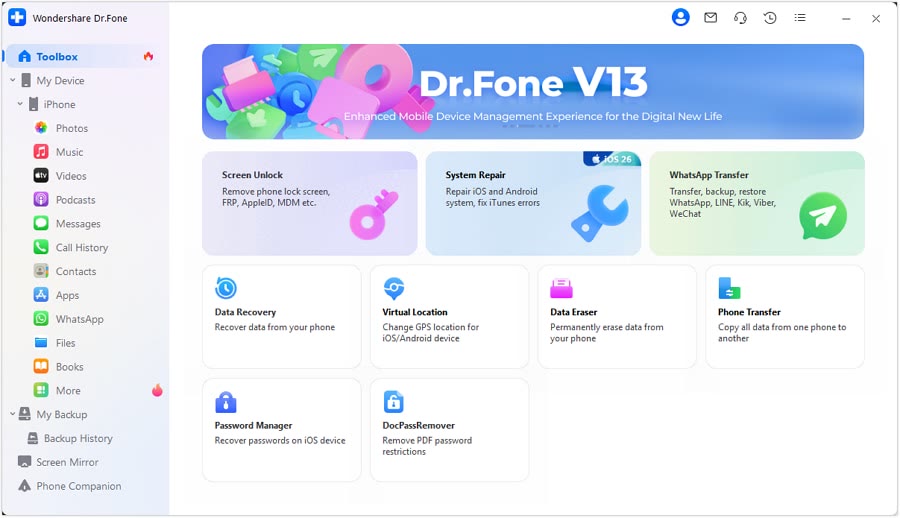 Dr.FoneExtra checkout code SAFDRFON for Dr.FonePhone recovery, repair and transfer toolkit
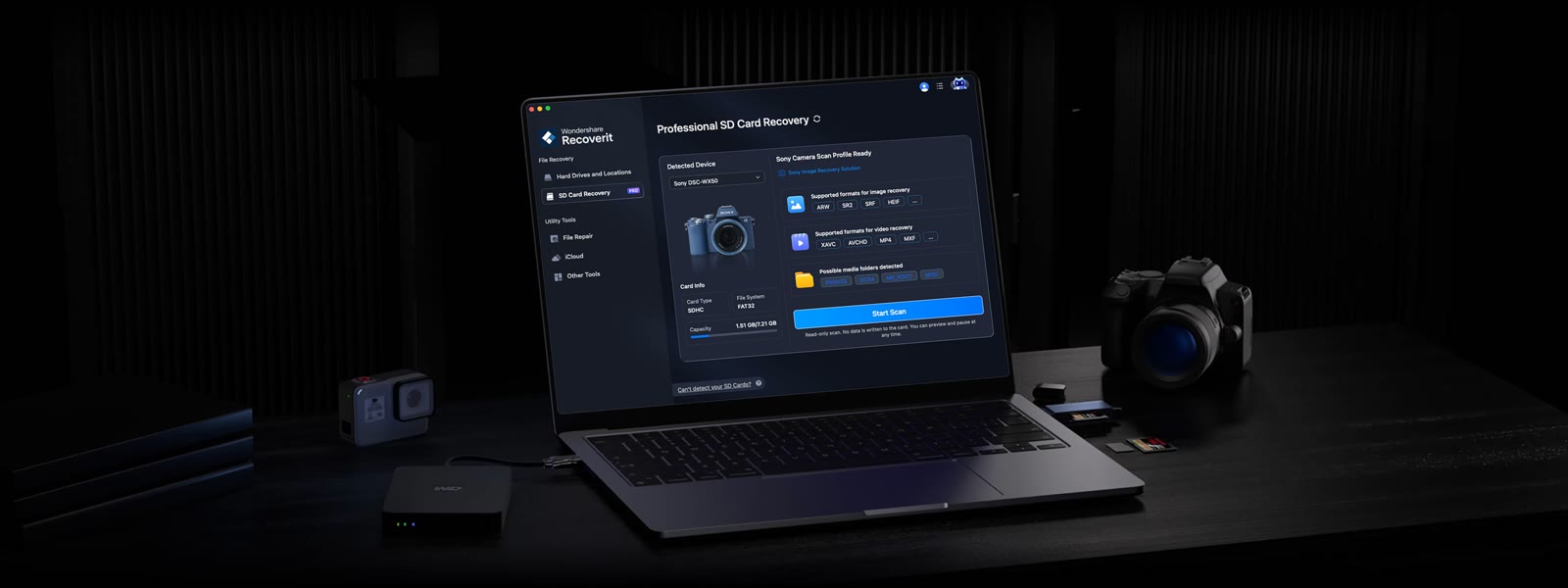 RecoveritExtra checkout code SAFRECOVGet deleted and formatted files back